When using Launch X431 diagnostic tablet with VCI connector, you have three connection options: Cable, Wi-Fi, and Bluetooth. By default, the system uses Wi-Fi, but sometimes you might need to switch methods for better performance. Here’s a simple guide to help you understand and choose the best connection type.
1.Wi-Fi Connection (Default Mode)
The Wi-Fi connection is the standard and most commonly used method. Here’s how to check and manage your Wi-Fi settings:
Go to the User Info section on your tablet.
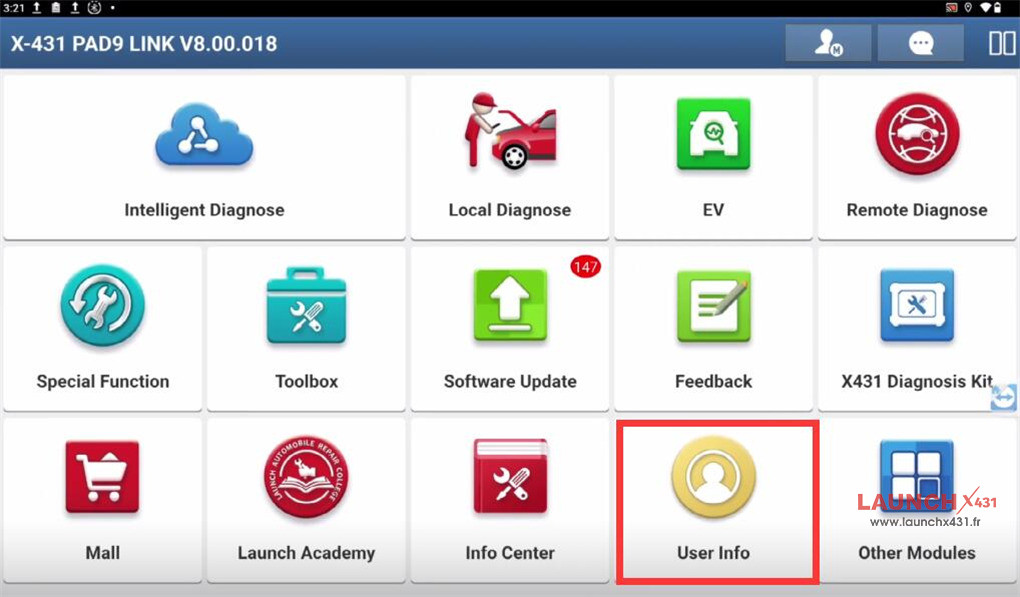

Tap on the VCI Menu five times. This will open the VCI Management screen.
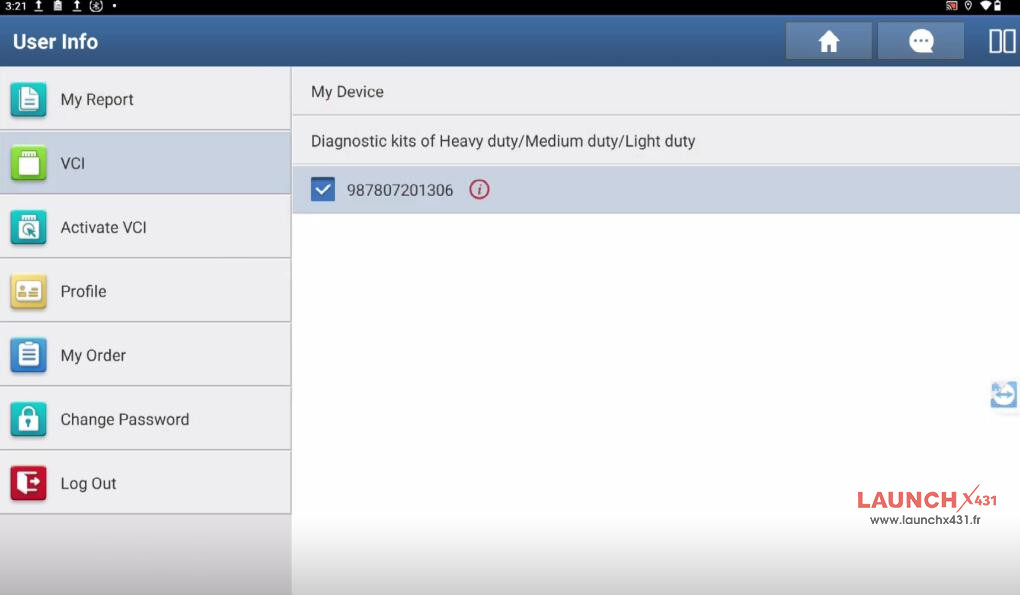

Under Communication Mode, you’ll see that Wi-Fi is the default.
In the Wi-Fi settings, you’ll find two useful features:
- Data Staffer Detection: If the communication data hasn’t changed for a long time during diagnosis, the system will send a notification.
- Signal Sensing: If the Wi-Fi signal becomes too weak, the system will alert you and may disconnect to avoid communication issues.
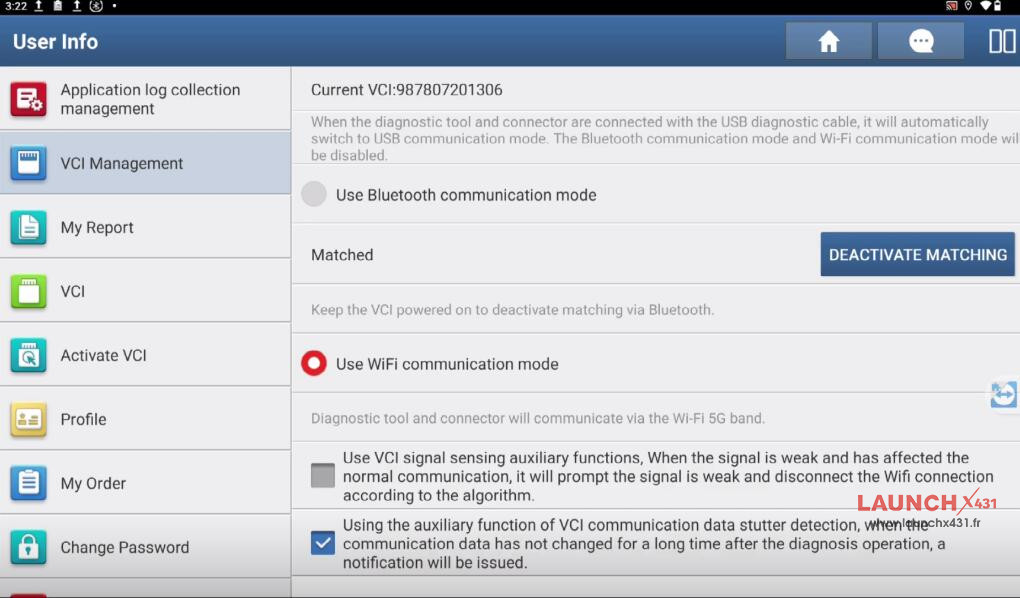

2.Bluetooth Communication Mode
If you’re experiencing Wi-Fi interference or want a wireless alternative, try Bluetooth:
In the VCI Management screen, check the box that says “Use Bluetooth Communication Mode.”
Your tablet and VCI will automatically pair. If needed, you can also deactivate or re-pair the connection from the same menu.
Bluetooth is a great option when you need a stable connection without relying on Wi-Fi networks.
3.Cable Connection (Using USB)
For a direct, wired connection, use the USB Type-C cable. Here’s how to enable it:
Exit the Launch X431 application.
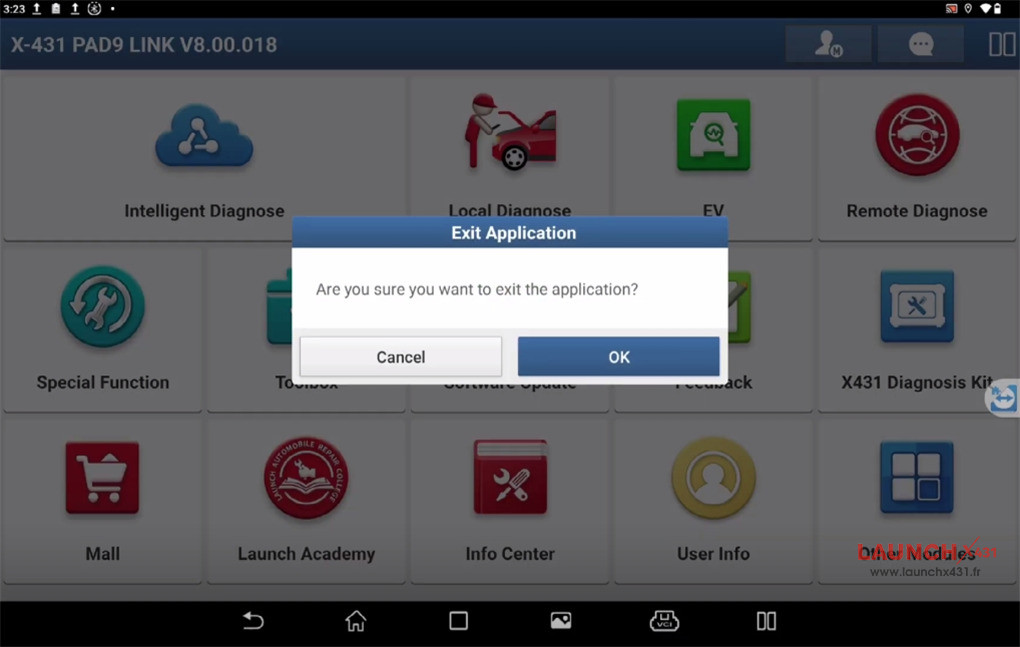

Go to Settings on your tablet.
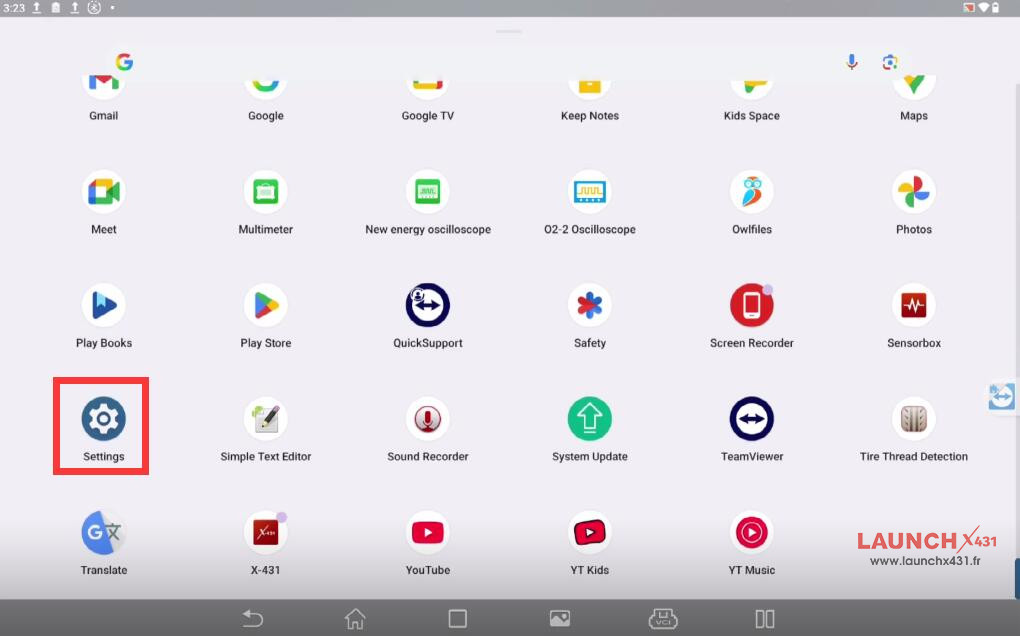

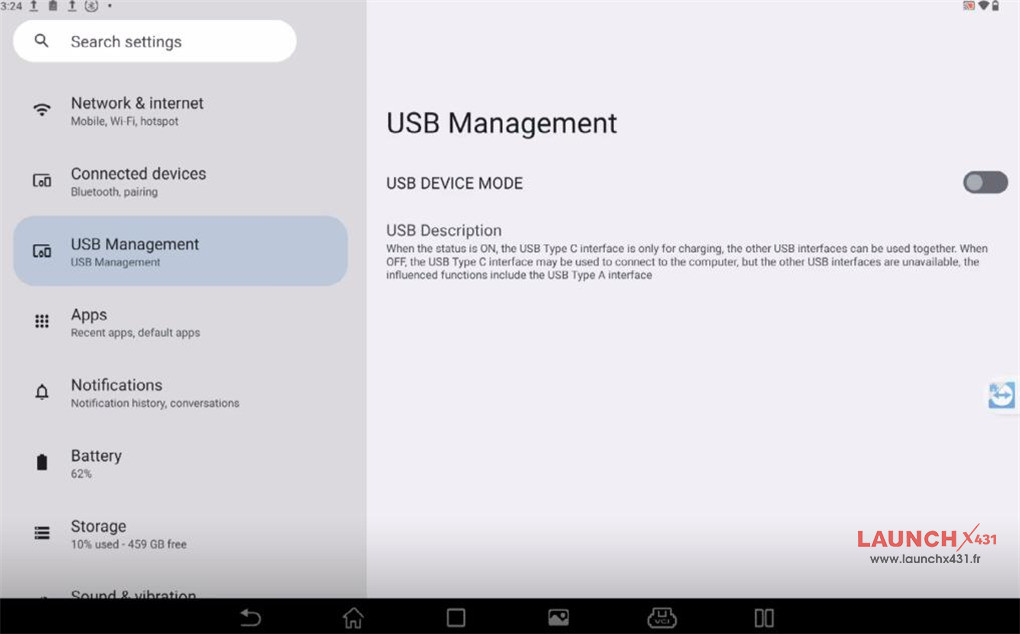
Select USB Management.
You’ll see two options:
- On: The USB Type-C port is used only for charging.
- Off: The USB Type-C port can be used to connect to the VCI.
Make sure the setting is turned Off to enable the cable connection. This method is especially useful when other wireless connections are unstable.

Which Connection Should You Use?
- Wi-Fi: Best for most situations. It’s convenient and requires no cables.
- Bluetooth: A good backup when Wi-Fi is unreliable.
- Cable: The most stable option. Use it when performing critical diagnoses or when wireless signals are weak.
Video guide:
