Recently one customer reported that he bought 2 Years Update Service for his Launch X431 PAD V, but he didn’t know how to update the software. If you have the same problem, follow this guide to operate.
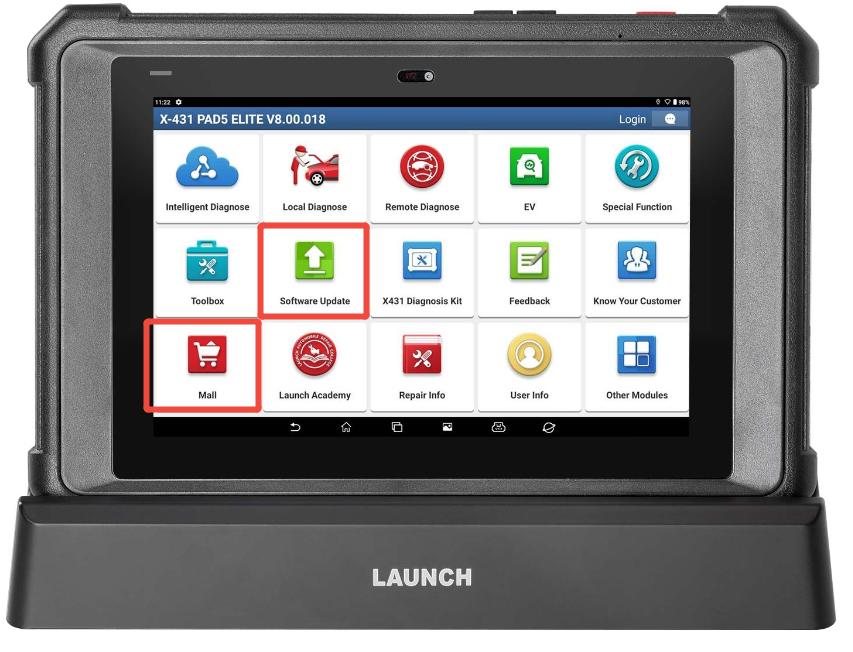
To activate a subscription renewal card for your X431 PAD V Elite, connect to a stable Wi-Fi network, log into your account, and navigate to the “Update” or “Mall” section. From there, select “Renewal” and enter the 24-digit PIN from your card to complete the process. Here is the step-by-step process:
Method 1: Via the “Update” Section
1.Power on your X431 PAD V Elite and ensure it is connected to a strong Wi-Fi network.
2.Tap the X431 application icon on your home screen and Login using your account.
3.Select Update to enter the update center.
4.Tap Renewal on the update page (this option appears once your current subscription is expired).
5.Select Subscription renew card and input the 24-digit password from your renewal card.
6.Click Confirm to finish the transaction and update your software.
Method 2: Via the “Mall” (Software Store)
Open the Mall from the main menu on your device.
2.Select the specific software package or update service you need to renew (e.g., standard update service, EV Diagnosis Add-on).
3.Tap Subscription Renewal Card Pay in the lower right corner.
4.Enter your 24-digit renewal card PIN code and click Confirm.
5.Return to the main menu and click Software Update to download the newly authorized packages.

Reference:
How to Purchase and Activate Launch Subscription Renewal Card?
