This guide explains the process of submitting APP diagnostic logs on Launch X431 tablets to the LAUNCH technical support team, providing essential data for issue resolution.
For example: X431 PAD9 LINK
To begin, enter the X-431 PAD9 LINK APP and look for the “Info Center” or “User Info” section on the main screen.
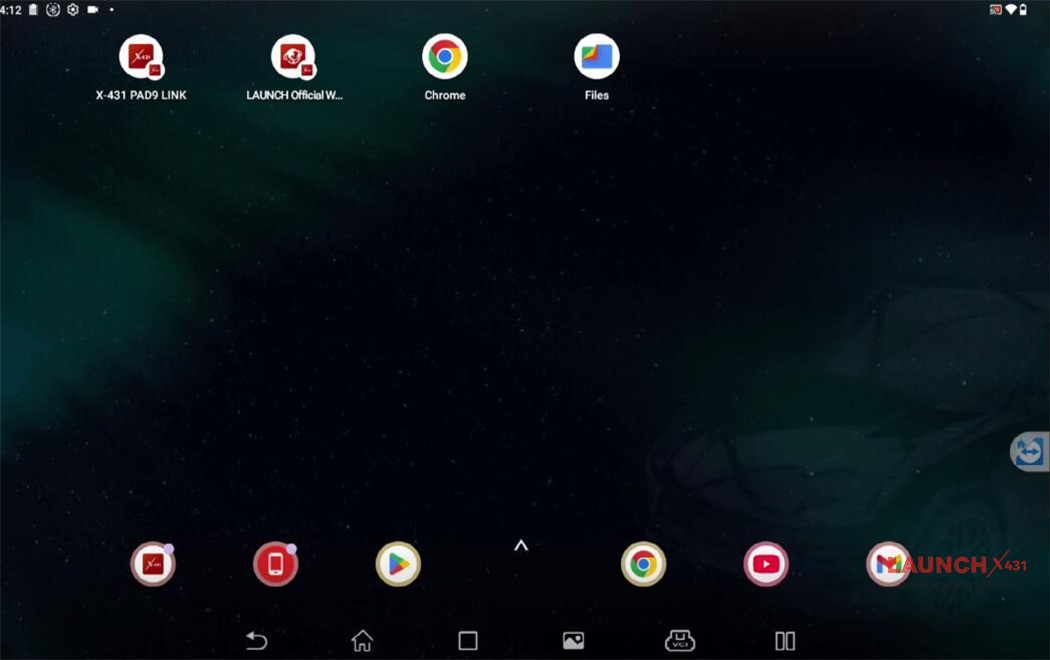
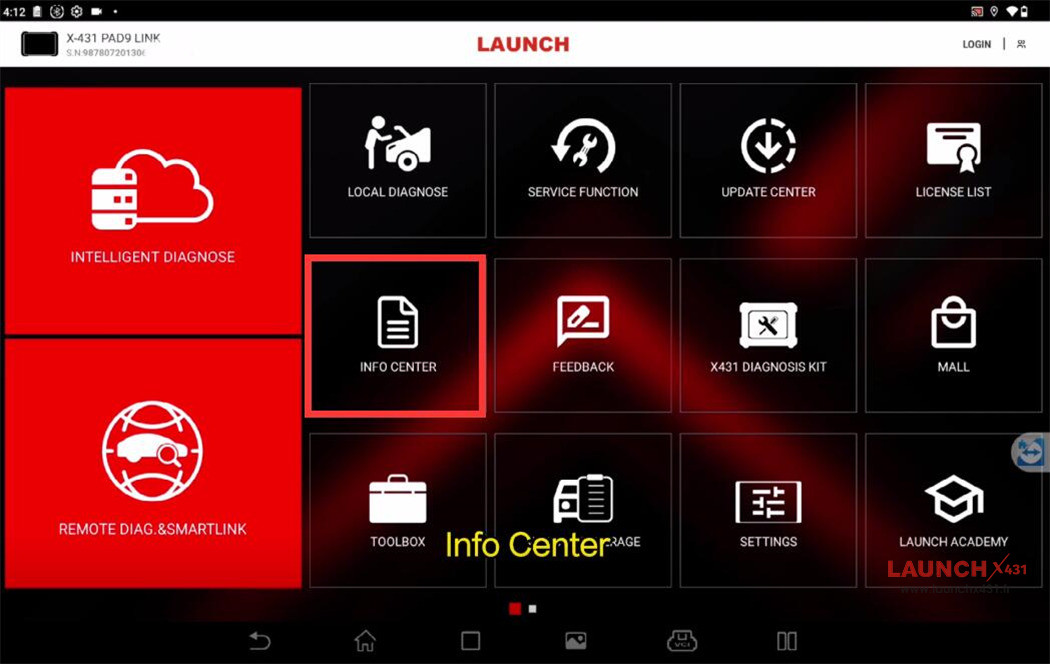


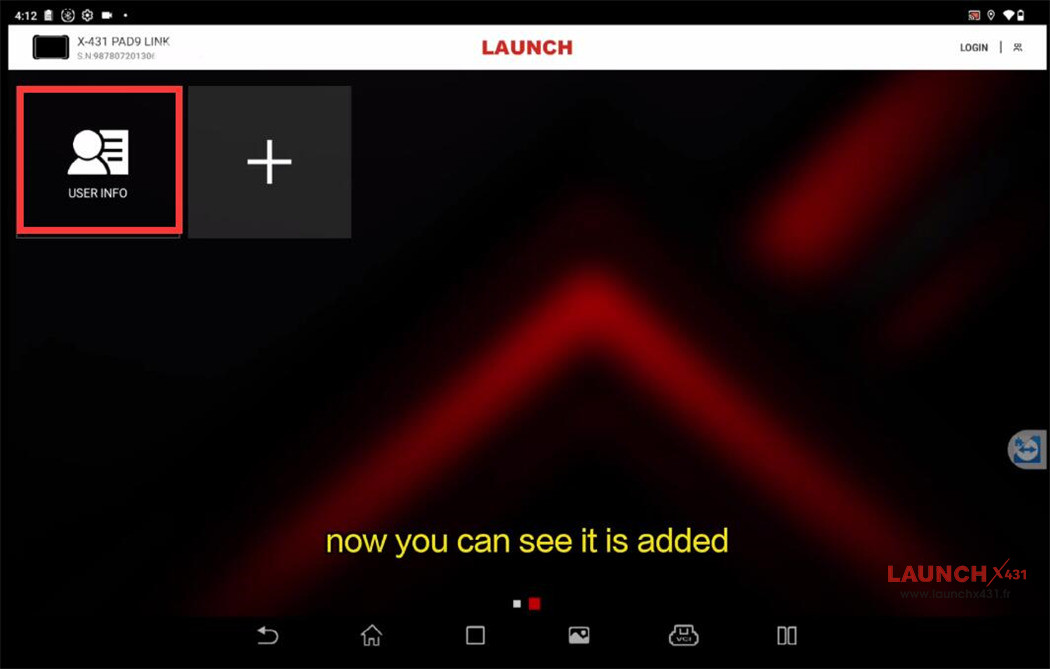
If you don’t see it, simply tap the “Add” icon to place the “USER INFO” shortcut on your tablet’s homepage.
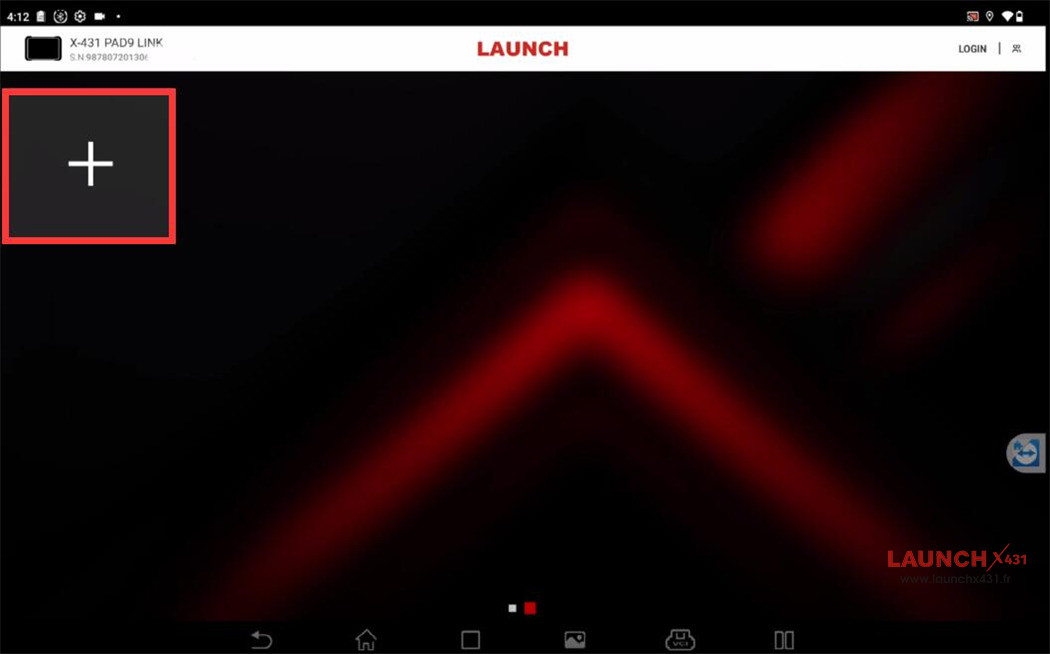
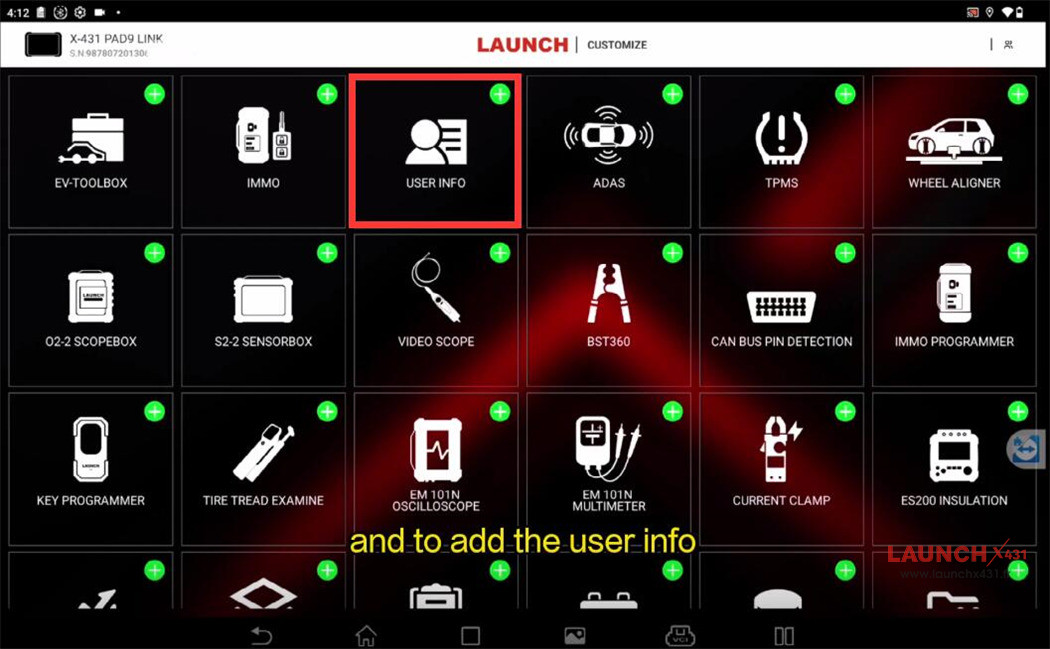


Once added, navigate to the second page where you’ll find the User Info icon.

Tapping it will display various options such as VCI, Activate VCI, My Order, Subscription Renewal Card, Software Status, Profile, Set/Reset password and Certificate Management.
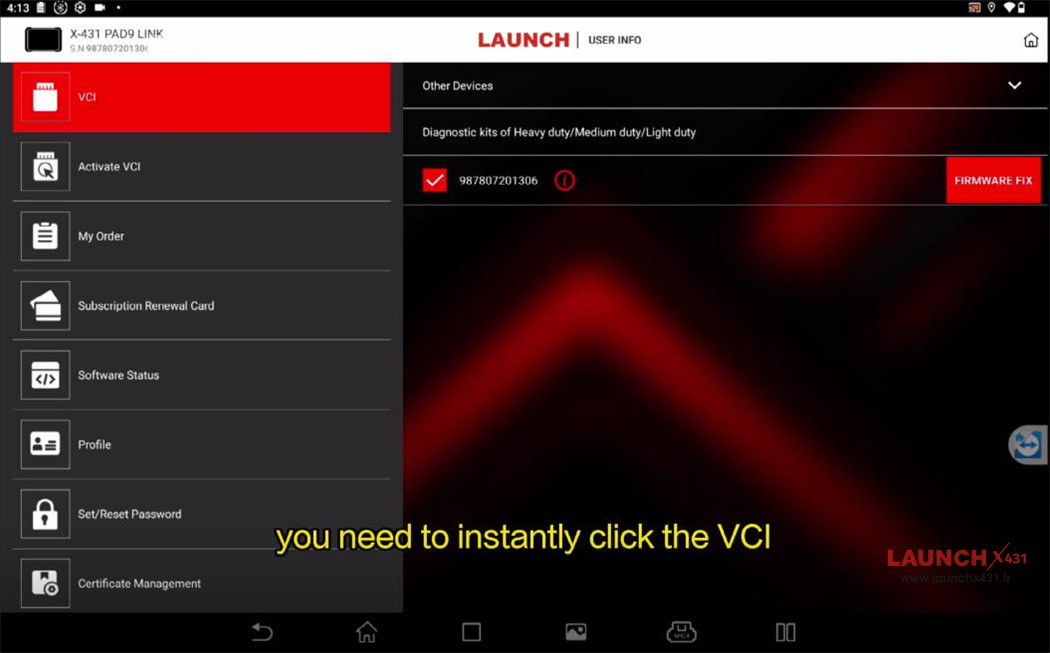

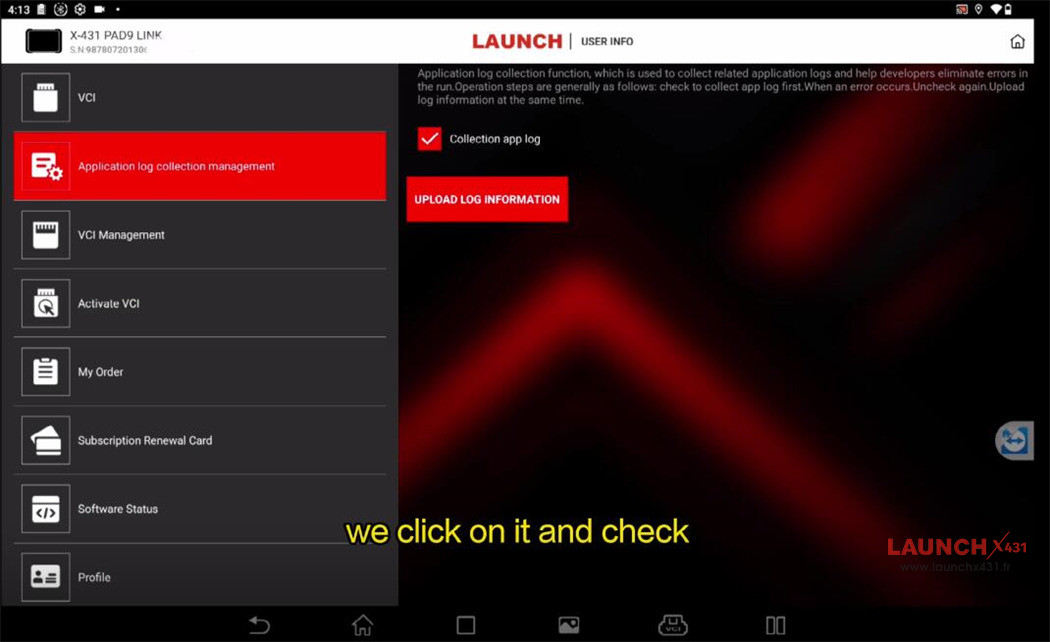
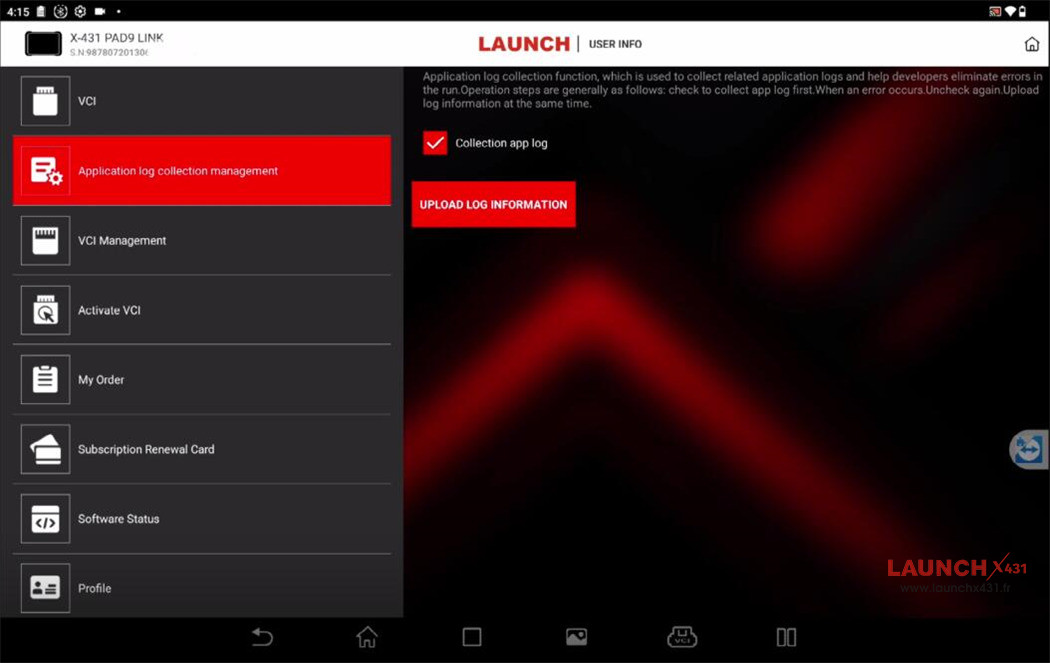
Please note that the application log collection menu is not immediately visible. To access it, quickly tap the VCI icon five times in a row.
This will bring up the Application Log Collection menu. Open it and ensure the “Collection app log” option is enabled (marked with a check).

After confirming, return to the main diagnosis menu of X431 tool
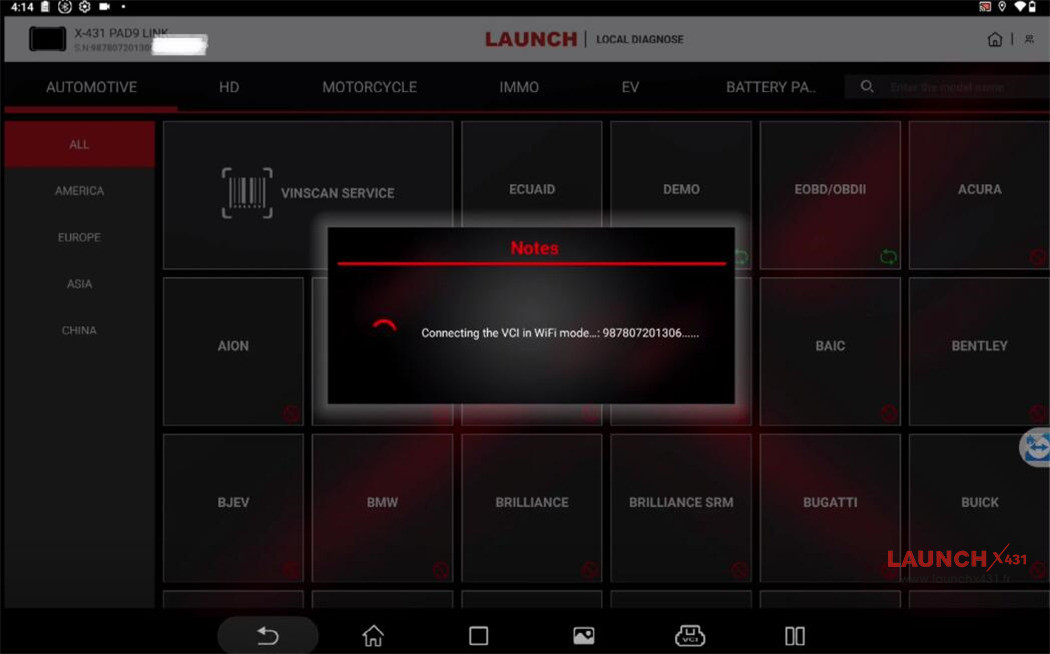
Whether using Intelligent Diagnose or Local Diagnose, select your vehicle to proceed with the diagnostic test.
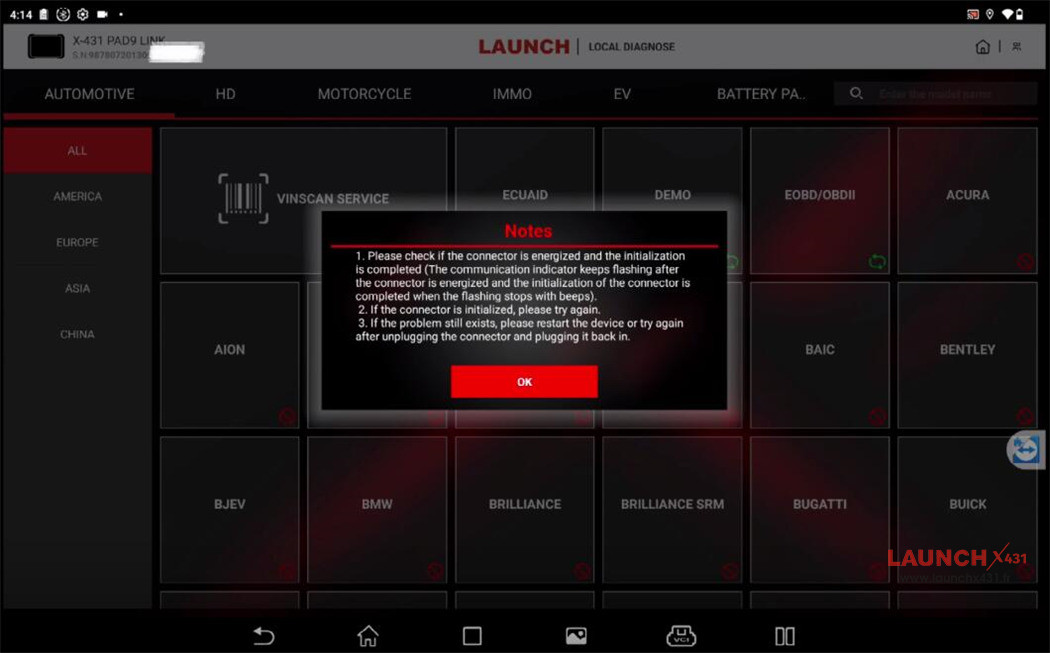
Once the diagnosis is complete, go back to the homepage and revisit the User Info section. If the Application Log Collection menu is no longer visible, tap the VCI icon rapidly five times again to restore it.
Finally, select the “Upload Information” option to complete the log collection process. Launch engineering team will then be able to review the logs accordingly.

Video guide:
