



A customer wanted to use Launch SmartLink C with wiTECH 2.0 but encountered several problems:
• The computer recognized only the Ethernet connection.
• The J2534 interface was unavailable.
• The device appeared as “ACER” in Windows Device Manager.
• Firmware updates could not be completed successfully.
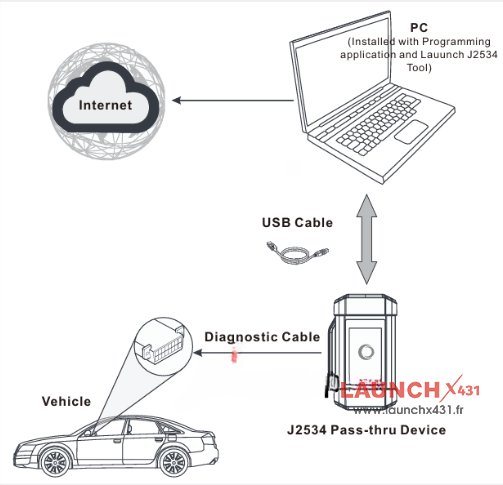
Log details:
C:(Program Files (x86) LAUNCH SmartLink\Drivers\Ethernet\DriverSetup_x64.exe
Start to detect driver installation system…
Computer version: Microsoft Windows 10
System type: 64-bit operating system
C:\Program Files (x86)\LAUNCH\SmartLink\Drivers\Ethernet\RNDIS.inf
Path of current driver file:
Device detection: Device not found!
Start to pre-install driver..
Driver already installed: oem318.in
Driver installed successfully!
Path of current driver file:
C:\Program Files (x86)\LAUNCH\Smartlink\Drivers\Ethernet\smartbox.inf Device detection: Device not found!
Start to pre-install driver…
DllVersion :01.20 by 2026-02-25 APIVersion :04.04
— J2534Dll() — 0
PassThruOpen()
====== Current local diagnosis ======
PassThruScanForDevices()
DeviceCount :0x00000001
Connect no error
Connect A7 success
-> 55 aa f0 f8 00 03 00 21 14 3e
-> 55 aa f0 f8 00 03 00 21 14 3e
-> 55 aa f0 f8 00 03 00 21 14 3e
ErrorCode :0x00000009 (Timeout.)
PassThruGetLastError()
—————— Error ——-Timeout.
ErrorCode :0x00000000 (USER_ERR_NO_ERROR)
— ~J2534Dll() —
Get the error when try to update:
DllVersion :01.20 by 2026-02-25 APIVersion :04.04
— J2534Dll() — 0
PassThruFirmwareUpdate()
–GetDeviceIPAddress()– RequestByUdpSocket!
-> 55 aa f0 f8 00 04 00 21 14 00 39
-> 55 aa f0 f8 00 04 00 21 14 00 39
PassThruFirmwareUpdate RecvData timeout iRet: 0x842
— ~J2534Dll() —
Log analysis revealed that:
• Driver installation was successful.
• No obvious driver installation errors were found.
• Device communication repeatedly timed out during operation.
• Firmware upgrade attempts ended with data reception timeout errors.
These findings indicated that communication between the PC and SmartLink C was being interrupted.
Solution
Our engineers suspected a network interface conflict and recommended disabling the wireless network adapter.
Procedure
1. Turn off the computer’s WLAN/Wi-Fi connection.
2. Reconnect the SmartLink C device.
3. Launch the software again and verify device detection.
Customer Feedback
The solution worked immediately.
After disabling the wireless network adapter, LAUNCH SmartLink C V2.0 was recognized correctly and functioned normally as a J2534 pass-through device.
Tech support:
1. Email: sales@launchx431.fr
2. WhatsApp: +86 18750906257
www.launchx431.fr