



This post shares how to resolve problems resulting from the unintended removal or installation of apps on Launch X431 tool. Follow the step-by-step guide to quickly regain full functionality and keep your device operating smoothly.
e.g. X431 PAD5 LINK HD (PAD V with SmartLink C and HD Truck Software and Adapter Pack)
1.Delete Faulty X431 APP
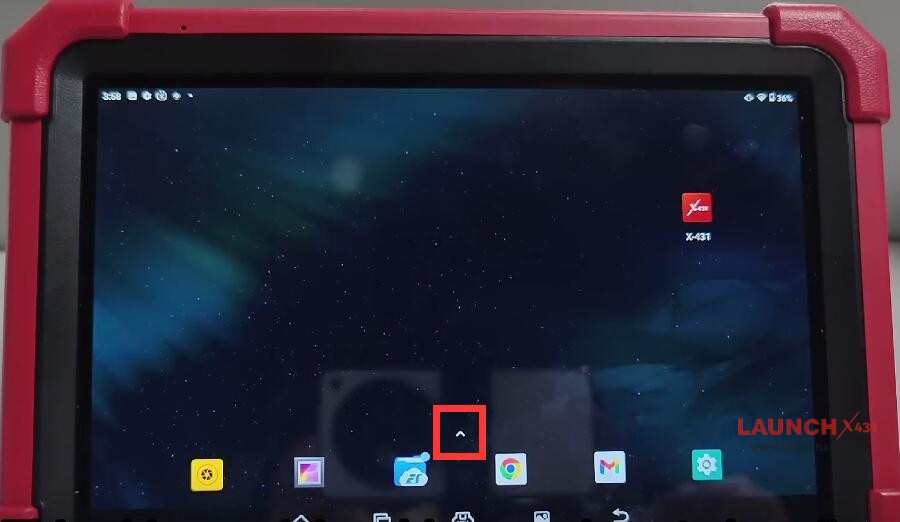
Tap the upward arrow icon to swipe the page
Find “X-431” and long press it
Tap “App info”
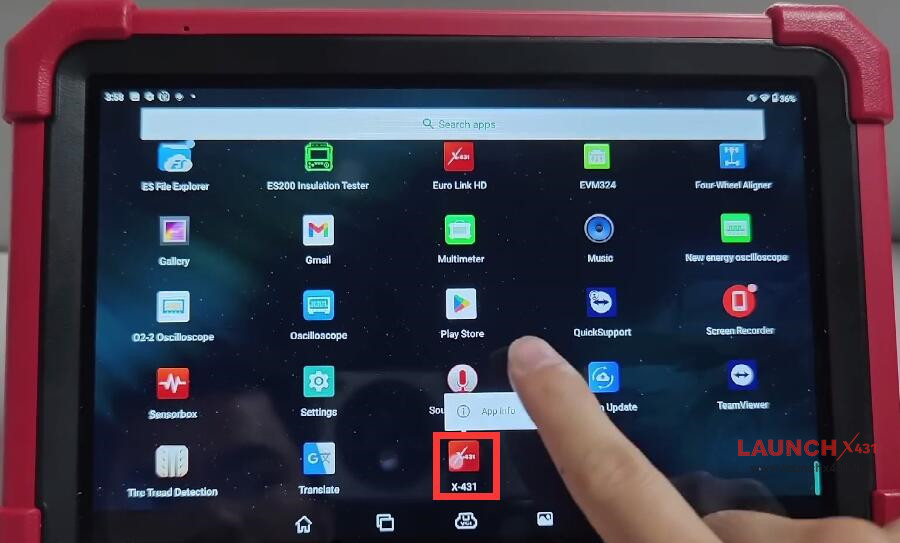
Select “UNINSTALL”
Click “OK” to uninstall this app
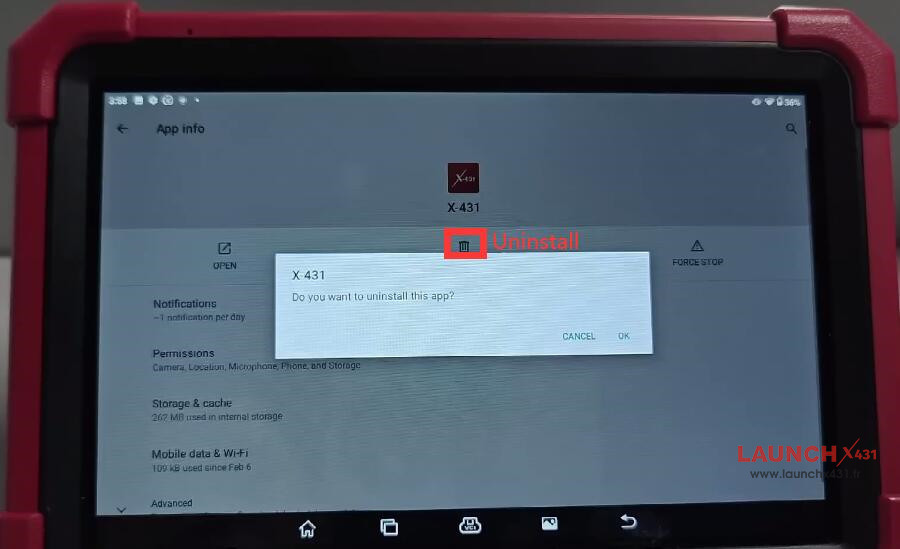
2.Delete “cnlaunch” Folder
Back to home page
Navigate to “ES File Explorer”
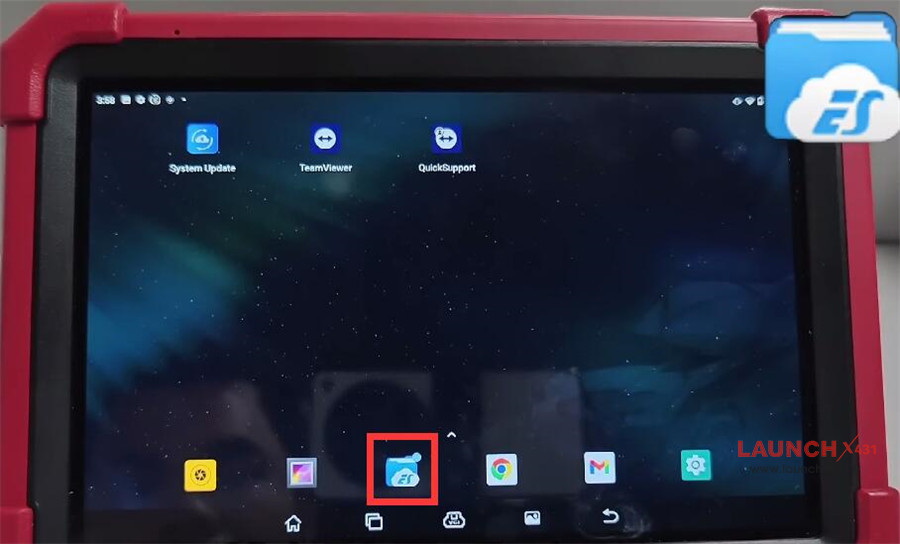
Select “Internal storage”
Long-press “cnlaunch” to delete the folder
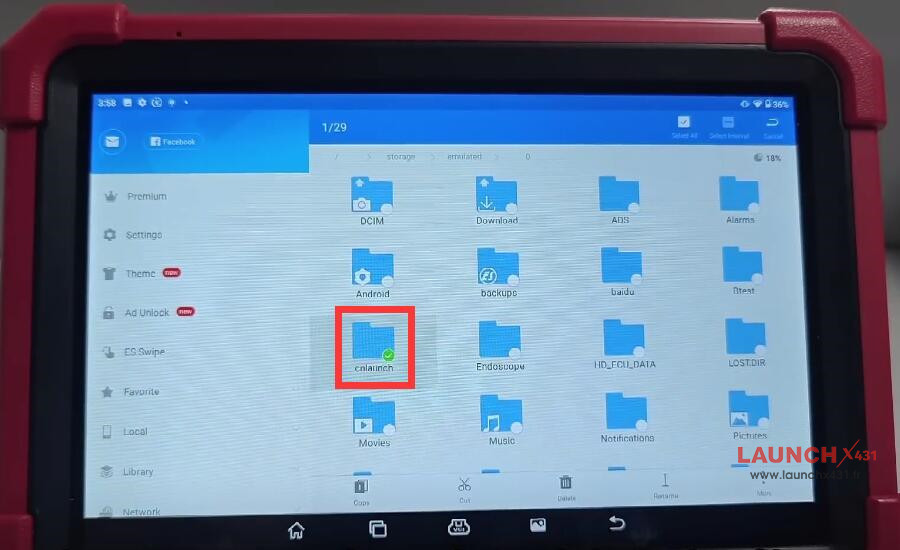
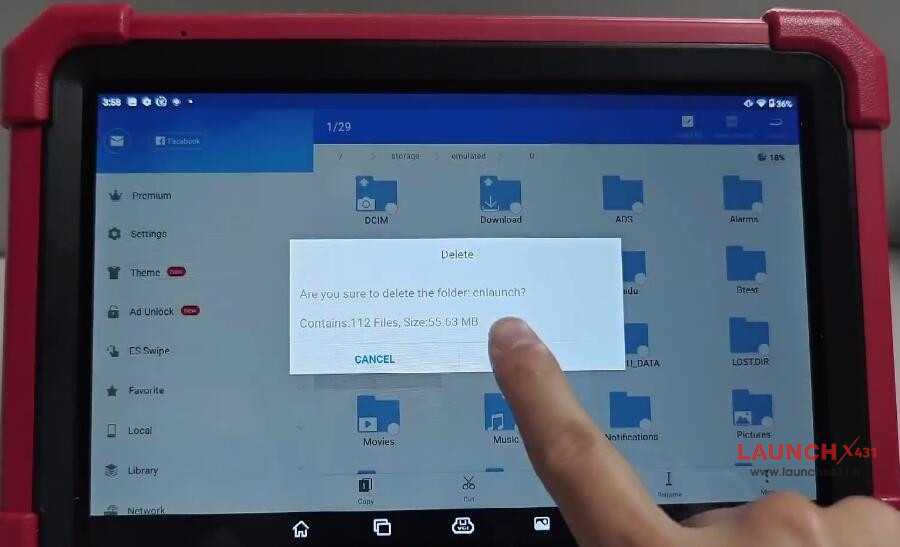
3.Download X431 APP
Return to home page
Open “APP Init”
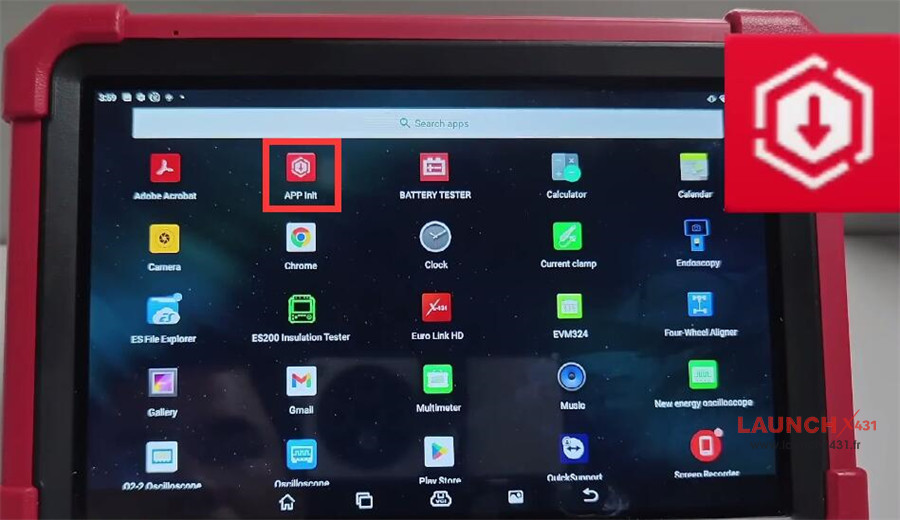
Enter the password and serial number
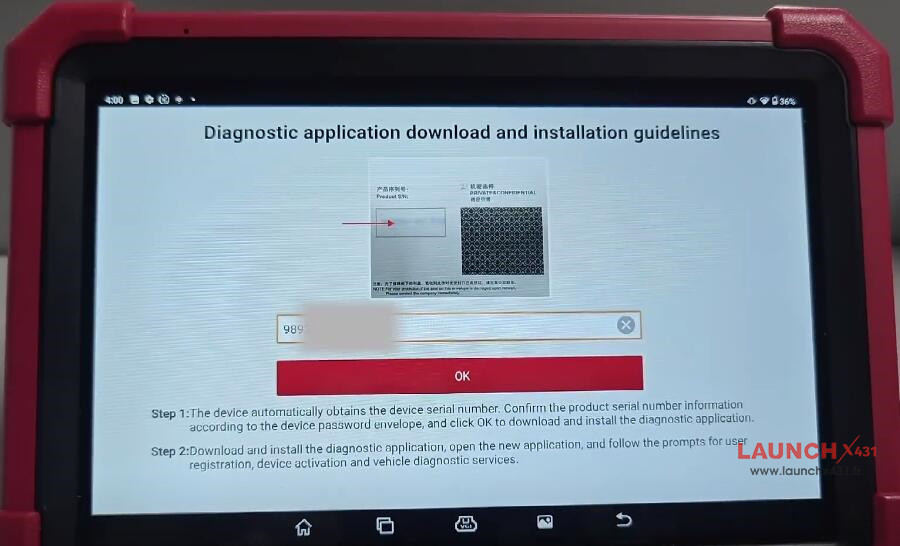
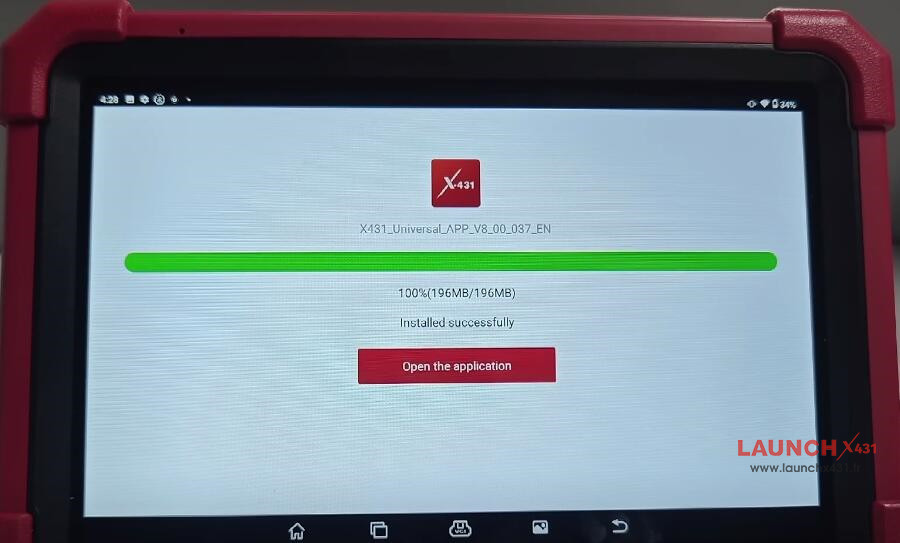
Download X431 APP automatically
Open the application after downloading
Allow X431 to access device’s location, make and manage phone calls, etc
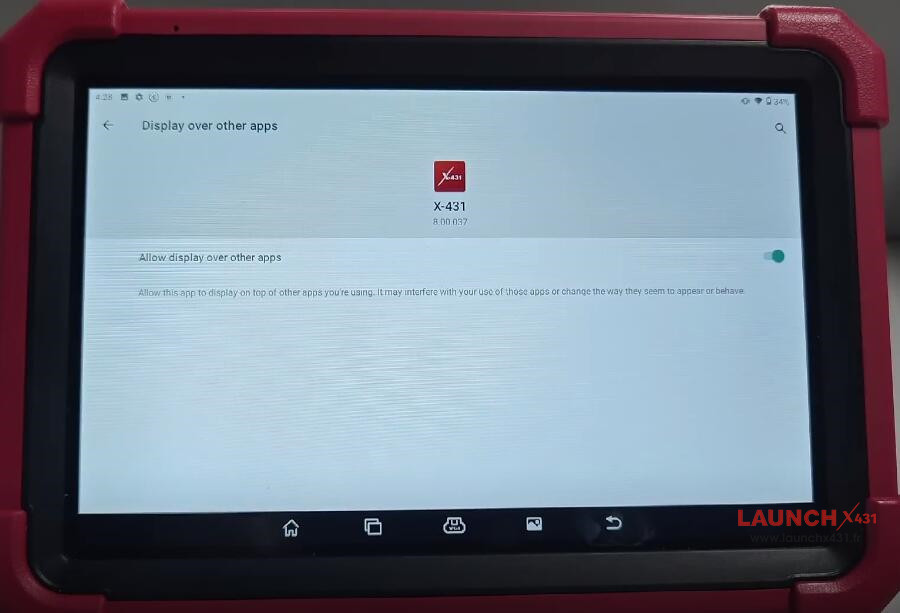
Turn on the button to allow display over other apps
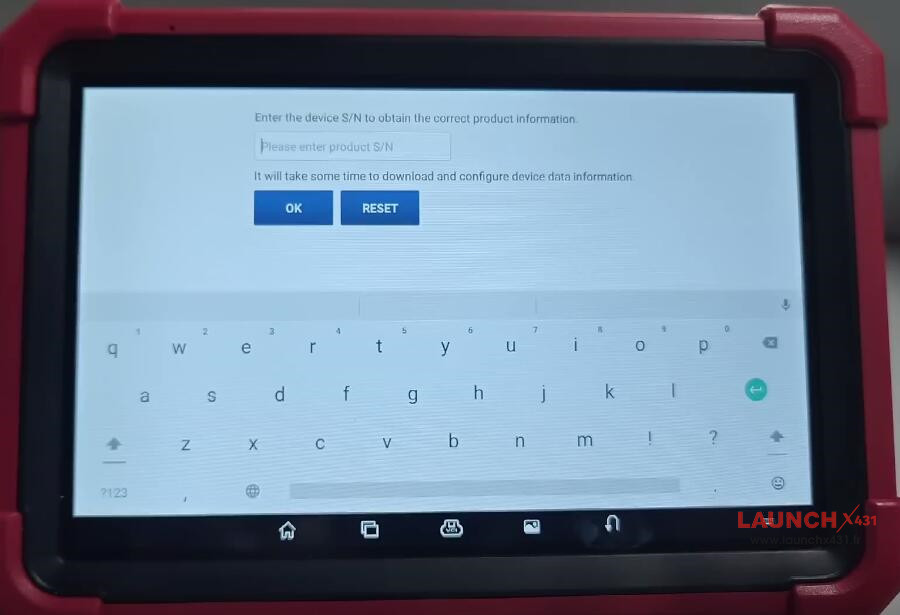
Enter X431 tool’s serial number to obtain the correct product information
It will take some time to download and configure device data information
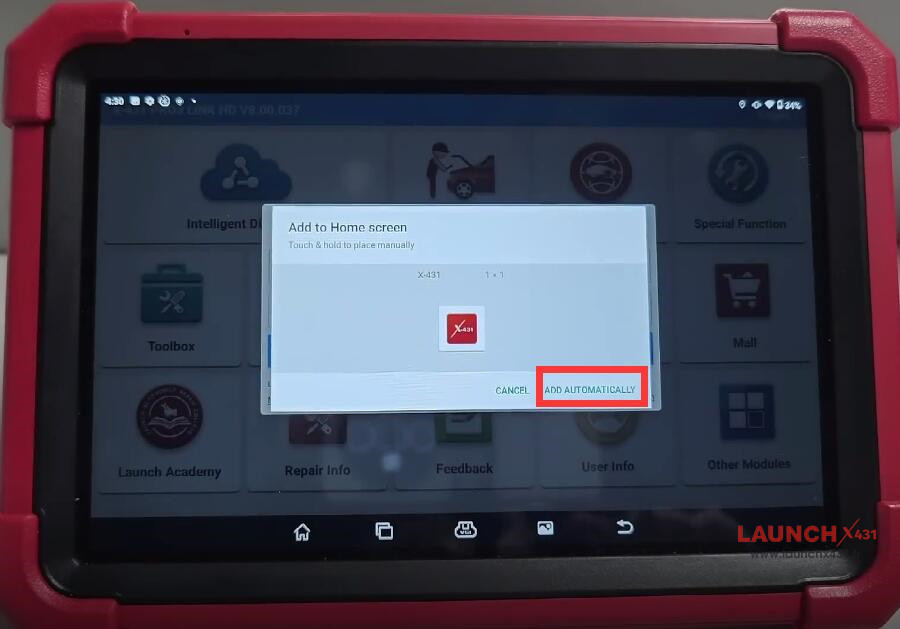
Click “ADD AUTOMATICALLY” to add X431 APP to home screen
Done!
Video guide: